Make your work easier and issue donation certificates through the Darujme.cz system. We automatically fill the certificate with the details the donor entered when donating and send it to the e-mail address they provided with the donation. If anything is missing from the certificate or the donor needs to change any of the details, the e-mail with the donation certificate explains how to do it (they register on Darujme.cz, update their profile and generate the certificate again with the correct details). As a nonprofit organization, you get an overview in the administration of who a certificate has been issued to, and you can also download it from the system for your records.
Donors who need a donation certificate right after donating can download the certificate directly from the notification e-mail confirming receipt of the donation. The link there now downloads a certificate only for the donation they have just sent. Donors can edit their details and download the certificate again.
The donation certificate feature is optional, so it is entirely up to your organization whether to use it or not. We are aware that many organizations issue certificates directly from their own CRM, which is why we will not set anything up automatically until you decide to activate the feature.
The fee is not a cost borne by the donor; it is a cost of the nonprofit organization. The donation certificate must therefore state the full donated amount.
Conditions for deducting a donation from the tax base under the Income Tax Act:
Conditions for individuals, including employees (under Section 15(1) of the Income Tax Act): Individuals (including employees) may deduct the value of donations from their tax base if the total value of donations in the tax period (calendar year) exceeds 2% of the tax base or amounts to at least CZK 1,000. In total, no more than 15% of the tax base may be deducted. Self-employed persons claim the donation deduction directly in their tax return. Employees who file their own tax return claim the deduction in the same way as self-employed persons – that is, in their tax return. Employees whose annual tax settlement is processed by their employer submit the donation certificate to their payroll department once a year, by 15 February at the latest, for the entire previous year. The reduction of the tax base is then reflected in the annual tax settlement as a higher salary payment, usually in March.
Conditions for legal entities (under Section 20(8) of the Income Tax Act): Legal entities may deduct the value of donations from their tax base if the value of the donation is at least CZK 2,000. In total, no more than 10% of the already reduced tax base may be deducted. This deduction cannot be claimed by taxpayers that were not founded or established for business purposes. For tax purposes, the donation must therefore be at least CZK 2,000.
How do I activate donation certificate issuing?
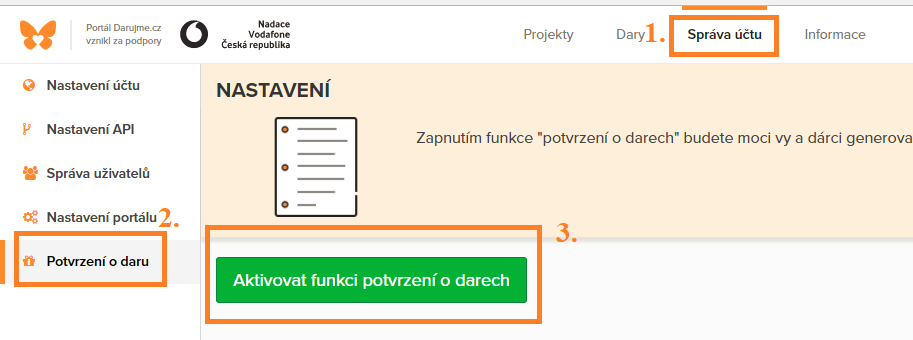
If you want to use the donation certificate feature, you need to log in to the system and, on the Account settings tab, click Donation certificates in the left menu and activate the feature (if you cannot see the Account settings tab, you do not have sufficient permissions and need to ask your administrator for them).
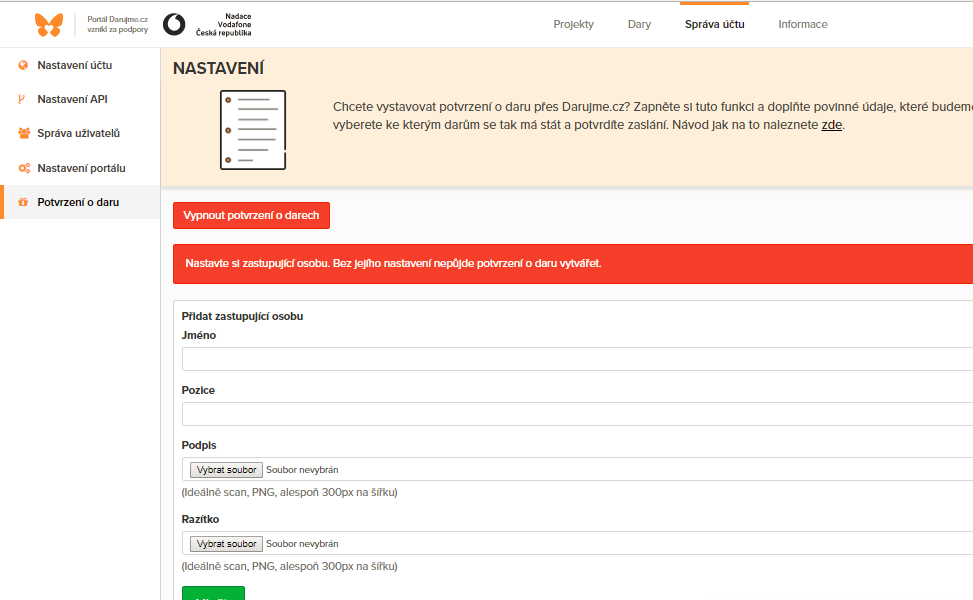
Next, you add the person authorized to issue certificates on your behalf. Upload an image of the representative's signature and your organization's stamp, and fill in the representative's name and position. These details will be automatically filled into the certificates. If the person authorized to issue donation certificates changes, add another person and set them as current. The new person will then automatically appear on the certificates.
How do I issue a donation certificate? Is it sent automatically?
If you decide to issue donation certificates through the Darujme.cz system, you must activate this feature in Account settings, see the instructions above. Once the feature is activated, you can send certificates to your donors.
Darujme.cz offers several ways to issue certificates: in bulk for the whole year, for donations to a specific project, for donations matching selected filters, or for an individual donation.
Tax legislation stipulates that a donation certificate can only be issued for a donation that your organization received in the accounting period (in the Czech Republic, the calendar year) for which the certificate is issued. This means that donations received in your account in 2024 belong on a donation certificate for 2024.
Certificates can only be sent for donations that Darujme.cz has already forwarded to you, i.e. donations in the status 
How do I send a donation certificate?
You issue donation certificates on the Donations tab (directly above the list of donations there is a section labeled Donation certificates). Either choose one of the options shown as buttons, or go directly from the donation detail (after clicking the donation's variable symbol). After choosing an option, you will be redirected to a page with a preview of the certificate. Please note that this is only a sample and does not show all of the donor's donations. Information about how many certificates you are issuing, for how many donors and for how many donations, is shown in the bar below the certificate preview. To send the donation certificates, click the green Send certificates button. The process of gradually sending the certificates to all your donors then starts. Processing takes a while; usually all certificates are sent within one to two hours.
The donor receives an e-mail with instructions on where to download the certificate and how to edit it if needed. We send the e-mail to the address the donor chose when donating. If they entered an outdated or invalid address, unfortunately the system cannot do anything about it. If the donor gets in touch afterwards, you can download the certificate from the system yourself and forward it by e-mail as a PDF (you will find the issued certificate in the donation detail).
Options for issuing certificates:
I want to issue certificates for all donations in a specific year – click the All for the year button and select the year of the received donations for which you want to issue certificates.
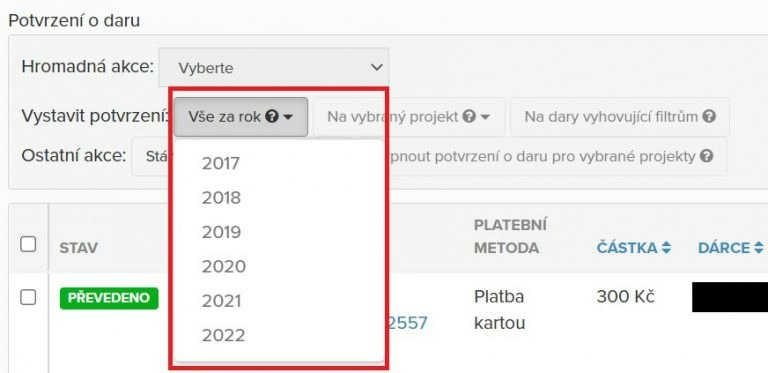
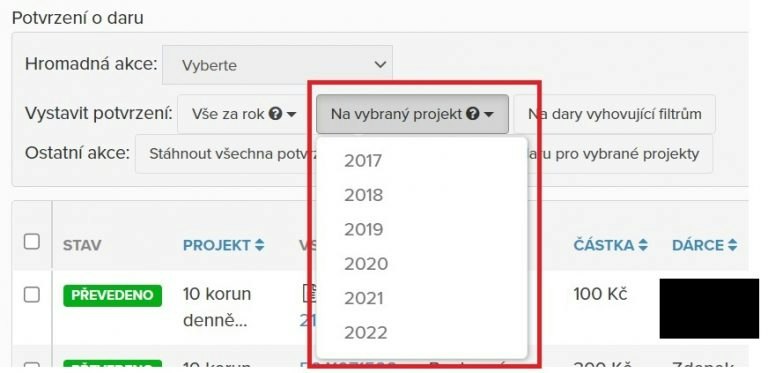
I want to issue certificates for donations to a specific project or projects – in the search, select the required project in the Project field -> click the For the selected project button and select the year for which you want to issue certificates.
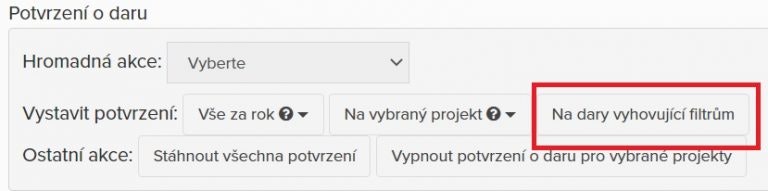
I want to issue certificates for filtered donations – set the required filters and click the For donations matching the filters button.
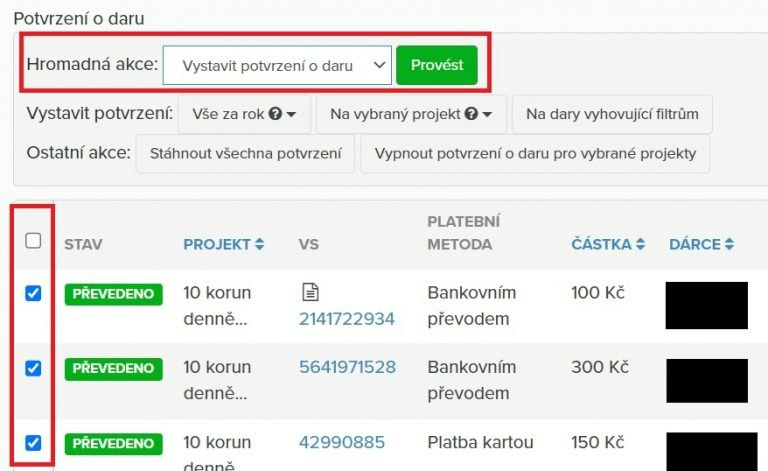
I want to issue certificates for specific donations – tick the checkbox on the left side of the donation list. From the drop-down menu labeled Bulk action, select Issue donation certificate and click the Execute button.
How are certificates issued?
If you select several donations from the same donor (or use the bulk option for the whole year), a cumulative certificate is issued. So if a donor sent you 3 donations during the year and you select all three of them at once, one combined certificate is created that lists all three donations and the total donated amount.
Certificates are issued per e-mail address used with the donation; if a donor used several e-mail addresses for different donations, a separate certificate is issued for each address.
One-time donations – one payment = one donation.
Recurring donations – all payments of a given donation = one donation. If you have received 12 payments for a recurring donation, we list all the payments on the certificate at once, even if you tick only one payment for generation.
If you issue a donation certificate from the donation detail and it is a recurring donation, we send the donor one e-mail listing all the transactions recorded for that recurring donation. If, on the other hand, you issue a certificate from the donation detail for a one-time donation, the donor receives a separate e-mail with a certificate for that specific donation.
Can I see which certificates have been issued, and where can I download them?
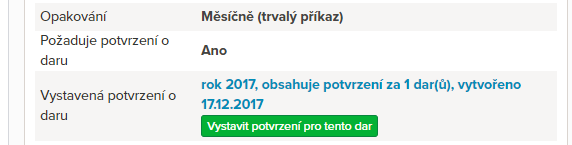
Of course. Once a donation certificate has been issued, you will see an icon next to the individual donation indicating that the certificate was issued.

In the donation detail, you can download the issued certificate, or issue it again and resend it to the donor through the system.
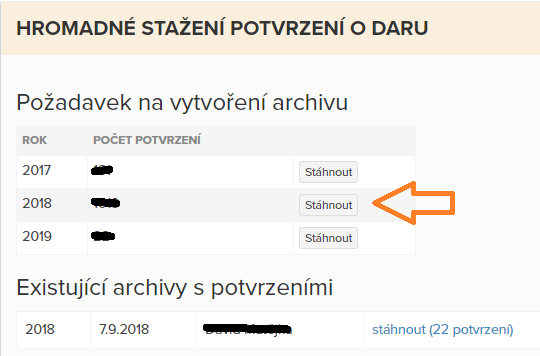
You can download an archive of all certificates on the Donations tab, in the Donation certificates section (above the list of donations), using the Download all certificates button. Then select the relevant year and click Download. Once the archive has been generated, the system sends you an e-mail. You download the generated archive in the same place, in the Existing certificate archives section, which appears once you have generated your first archive.